
VRMoveTime 4.2-4.22 Development Deep-Dive
If you’d like to see the update notes for version 4.20, 4.21 and 4.22, I’ve put them up on the main website here: https://bigseal.com/5-4-26-vrmt-version-4-2-4-21-and-4-22/
For anyone not following the app, VRMoveTime is a program that lets you combine 3D face/head tracking with game like movement, so you can actually move your character around the stage rather than having be in one place. It also has a virtual controller system that lets your avatar actually press all the buttons you’re pressing on a controller in their hands, and another that can be shown directly on the screen. My goal for the app has been to achieve parity, both in features and performance, with one of the most optimized and widely used VTuber applications, VSeeFace! VSeeFace is an excellent and extremely optimized program with core features that VTubers have come to rely on: one which I’ve spent many, many hours using myself!
Before I implemented 3D face tracking from phone cameras in VRMoveTime version 4, I was using VSeeFace’s tracking and sending it to VRMoveTime via the OSC/VMC receiver specifically because VSeeFace is so well programmed. Big shout-out to @Emiliana_vt and @Virtual_Deat for the work they’ve done on VSF, and for making much of the tracking code available which I definitely used to get face tracking working in VRMoveTime in a matter of weeks rather than months!
To achieve the optimizations in VRMT, while still maintaining continuous input detection and keybinds for features like avatar movement using a variety of devices, I’ve used the built-in Unity Input System, and modified components to reduce extremely rapid and unused input polling that I’ve found on some devices, notably Playstation controllers. I chose to use the Input System over Unity’s older Input Manager because it offered flexibility for more controller and device types (such as touchpads or XR controllers) and the potential to modify it because the package also includes modifiable source code.
The Unity Input System, Modifications and Optimizations
It’s been quite a journey with the newer Input System, because while it offers more flexibility, this comes at a cost of complexity. There is documentation of its features available, but this documentation is plainly written and it can be difficult to find which features are available or examples of how to use them. I’ve needed to dig into the source code on many occasions to see exactly how things work and make changes to accommodate VRMoveTime’s features. For version 4.22 I was very optimization focused, and using the Unity profiler worked my way from the top for each aspect of the program that was using significant CPU until I had optimized each aspect until they were at near 0 usage by throttling updates unless something had actually changed in the app through player input. This post is specifically about just one aspect of the Input System optimization, because it snowballed into an even bigger effort to reverse engineer bring some light to how everything was working in the system which I’ll describe later, but first:
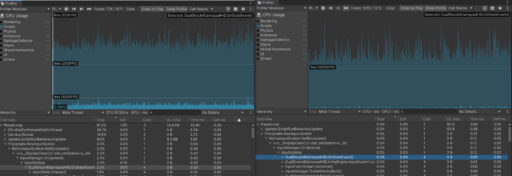
On the left side is an older version of the app (4.2) with fewer optimizations applied, on the right is version 4.22. In both cases, just one DualShock4 controller is connected and no buttons are being pressed, and on the left the Input System is using a good chunk of CPU. What’s happening here? First, let’s take a look at the a screenshot of Unity’s Input System debugger to see what buttons are actually coming in for the controller itself. Specifically the list at the bottom which adds a line every time a button is pressed or analog stick is moved:
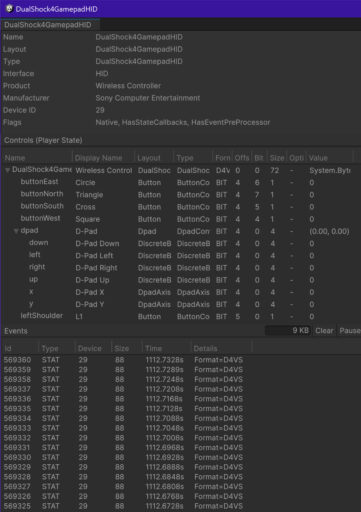
I’m not pressing any buttons on the controller (the list at the top confirms this if I scrolled all the way through) and the controller is flat on the table, what are these mystery values that are coming in seemingly hundreds of times per second? Let’s take a look at the unmodified source code that drives the DualShock controller updates, specifically in DualShockGamepadHID.cs which is the ‘Plugin’ for the controller in Unity. This code is fired off once for every entry that comes in on that big list above, which is hundreds of times a second now. Let’s and see if that reveals anything (note I’ve added types to the variables):
// filter out three lower bits as jitter noise
internal const byte JitterMaskLow = 0b01111000;
internal const byte JitterMaskHigh = 0b10000111;

public unsafe void OnStateEvent(InputEventPtr eventPtr)
{
    if (eventPtr.type == StateEvent.Type && eventPtr.stateFormat == DualShock4HIDInputReport.Format)
    {
        *DualShock4HIDInputReport currentState = (DualShock4HIDInputReport*)((byte*)currentStatePtr + m_StateBlock.byteOffset);
        *DualShock4HIDInputReport newState = (DualShock4HIDInputReport*)StateEvent.FromUnchecked(eventPtr)->state;

        bool actuatedOrChanged =
            // we need to make device current if axes are outside of deadzone specifying hardware jitter of sticks around zero point
            newState->leftStickX<JitterMaskLow
                                    || newState->leftStickX> JitterMaskHigh
            || newState->leftStickY<JitterMaskLow
                                    || newState->leftStickY> JitterMaskHigh
            || newState->rightStickX<JitterMaskLow
                                        || newState->rightStickX> JitterMaskHigh
            || newState->rightStickY<JitterMaskLow
                                        || newState->rightStickY> JitterMaskHigh
            // we need to make device current if triggers or buttons state change
            || newState->leftTrigger != currentState->leftTrigger
            || newState->rightTrigger != currentState->rightTrigger
            || newState->buttons1 != currentState->buttons1
            || newState->buttons2 != currentState->buttons2
            || newState->buttons3 != currentState->buttons3;

        if (!actuatedOrChanged)
            InputSystem.s_Manager.DontMakeCurrentlyUpdatingDeviceCurrent();
    }

    InputState.Change(this, eventPtr);
}
This is strange, and to explain why without going into too much fine detail, the code is taking in button values from the previous frame/millisecond, and comparing them the state of the controller for the next frame, (to see if any buttons have actually been pressed) and then telling the Input System “Dont Make Currently Updating Device Current” if no changes are detected. This would work just fine… but PlayStation controllers have gyroscopes, which if you launch Steam and check the controller detailed settings, you can see in action if you rotate the controller in any direction. Playstation controllers are sending in extremely precise values when you rotate the controller and they come in very fast. Even if you leave the controller flat on the table, the gyroscopes are still processing and sending a tiny bit of motion constantly.
Playstation 4 and 5 controllers also have a touchpad, but there isn’t any code here to check for touchpad or gyroscope updates, just for sticks or buttons. Well, I did some digging and as it turns out, touchpad and gyrocope controls are Officially Unsupported in Unity unless you are building specifically for Playstation consoles. However, all of those gyroscope and touchpad and gyroscope controller rotation changes are still coming in and still being processed by the Input System, even if they are not supported! Let’s add a Debug line here to see what’s happening:
|| newState->buttons3 != currentState->buttons3;

UnityEngine.Debug.Log(newState->buttons3);

        if (!actuatedOrChanged)
            InputSystem.s_Manager.DontMakeCurrentlyUpdatingDeviceCurrent();
And the result:
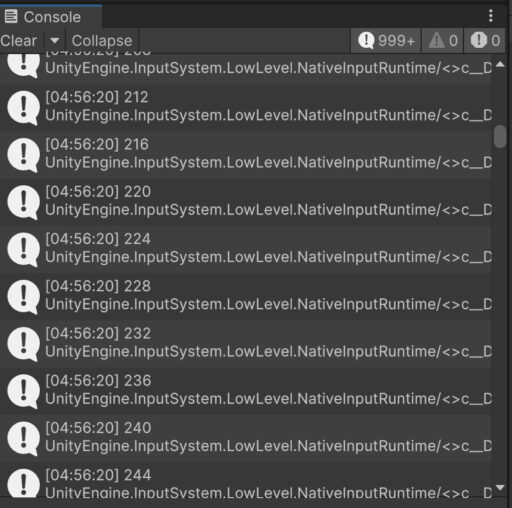
Hundreds of lines generated in the period of about a second, without any button actually being pressed, confirming that the DualShock gyroscope and touchpad values are coming in on buttons3. So, if you’re not going to use the gyroscope values and want to save some CPU time for you app, you can modify the source by adding an extra mask for the gyro and touchpad like this (since at this time they’re unsupported anyways):
internal const byte JitterMaskLow = 0b01111000;
internal const byte JitterMaskHigh = 0b10000111;
internal const byte Buttons3Mask = 0b00000011;
And then modifying this line:
|| newState->buttons3 != currentState->buttons3;


To this:
|| (newState->buttons3 & Buttons3Mask) != (currentState->buttons3 & Buttons3Mask);Which effectively filters out the gyro and touchpad values, taking in only the touchpad button press and system button press from buttons3. However, that’s not quite enough to save the CPU time, because in the current code “actuatedOrChanged” still only determines whether the device is set as the current input device the player is using, and not actually filtering out any controls!
if (!actuatedOrChanged)
{
 if ((newState->buttons3 & Buttons3Mask) == (currentState->buttons3 & Buttons3Mask)) return;
 InputSystem.s_Manager.DontMakeCurrentlyUpdatingDeviceCurrent();
}
With the extra line in there, we’re checking to see if the previous frame’s touchpad button and system buttons match the controller’s current button presses, without any touchpad or gyro, and then return; to prevent InputState.Change(this, eventPtr); from ever happening. This is what I’ve done for VRMoveTime 4.22 as just one of the points to hyper-optimize the app, specifically for DualShock controllers. However, this whole process got me curious, because there are paid Unity plugins that have been able to figure out the DualShock values, and these should be similar to PS5 DualSense controller values too, so I could probably spend some more effort reverse engineer the extra controls without too much effort to get them actually working, right? We’ll see how that turns out in the next update!